- design
- ios
- iphoneduo
- swiftui
How iPhone Duo highlighted the work we should have already done
 Sofia Larsson
13 min read
Sofia Larsson
13 min read
iPhone Duo launches on October 23, and Ambre is ready for it on day one. It already ran on iPad and Mac, so we expected it to simply work on a foldable. At first glance it did: nothing looked broken. But there was room for improving the design so it would feel at home on the device. Getting it right took about thirty commits, nearly all of them about things a flexible layout cannot know: how far the phone is folded, whether the crease is in play, what the user was looking at a moment ago. Each one needed a human touch. This post is about those layers, told through the recipe screen, which taught us most of them.
Resizable is the floor, not the finish
If your app already handles resizable windows on iPad and Mac, the first Duo build is a pleasant surprise. Ours was. Nothing crashed, the columns flexed, the grid picked a sensible column count based on size, and the two-column recipe showed up when there was room for it. We opened it on the cover screen, then on the inner screen, and the instinctive reaction was: that was easy, job done.
That reaction lasted about a day. A flexible layout answers exactly one question — how wide am I? — and a foldable asks several more. Once we put the magnifying glass on it, screen by screen and posture by posture, every view was technically correct, but almost none of them felt designed for the device:
- The recipe’s square photo, sized to the width of the cover screen, was taller than the cover screen. You opened a recipe and saw half a plate and no title.
- On the inner screen the grid picked three columns, which is the right answer for that width and the wrong answer for that screen: the middle card sat directly on the crease.
- Bending the phone from flat to half-open swapped one layout for another, and every card on screen resized at once. It was correct and it felt like a glitch.
- The tags row was missing on the inner screen, because “regular width” had always meant “there’s a sidebar listing the tags.” There isn’t. Duo’s inner screen is regular width with a tab bar.
- The photo’s gentle corner radius sat inside the display’s much larger one, and the mismatch was the first thing your eye landed on.
None of those are bugs in the resizable layout. They are the questions it was never asked: which way is the device bent, where exactly is the fold, what shape is this screen, and what did the user just see before this. Each one became a layer on top of the foundation, and the recipe screen needed all of them.
The cover screen is a short phone
Folded, iPhone Duo is a wide, short phone — about 90% of an iPhone 18 Pro’s aspect ratio — with a toolbar that moves to the side depending on the device’s orientation. Ambre’s recipe screen had never had to deal with that shape before, and it showed.
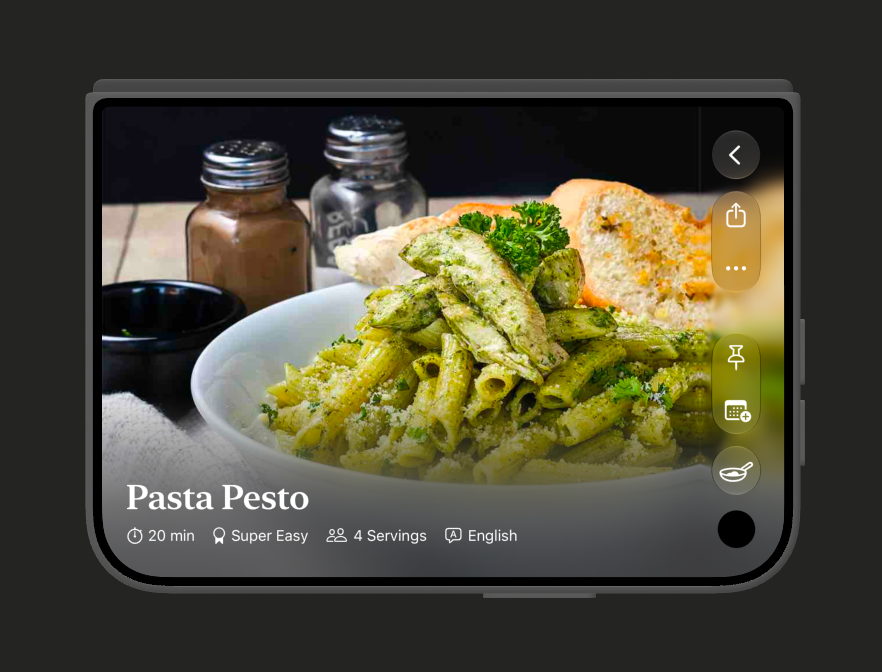
Our recipe hero was a square photo sized to the screen’s width, with the title and quick facts underneath. On the cover screen a square that wide is taller than the screen itself. You opened a recipe and saw the top of a plate, no title, no idea what you were looking at until you scrolled.
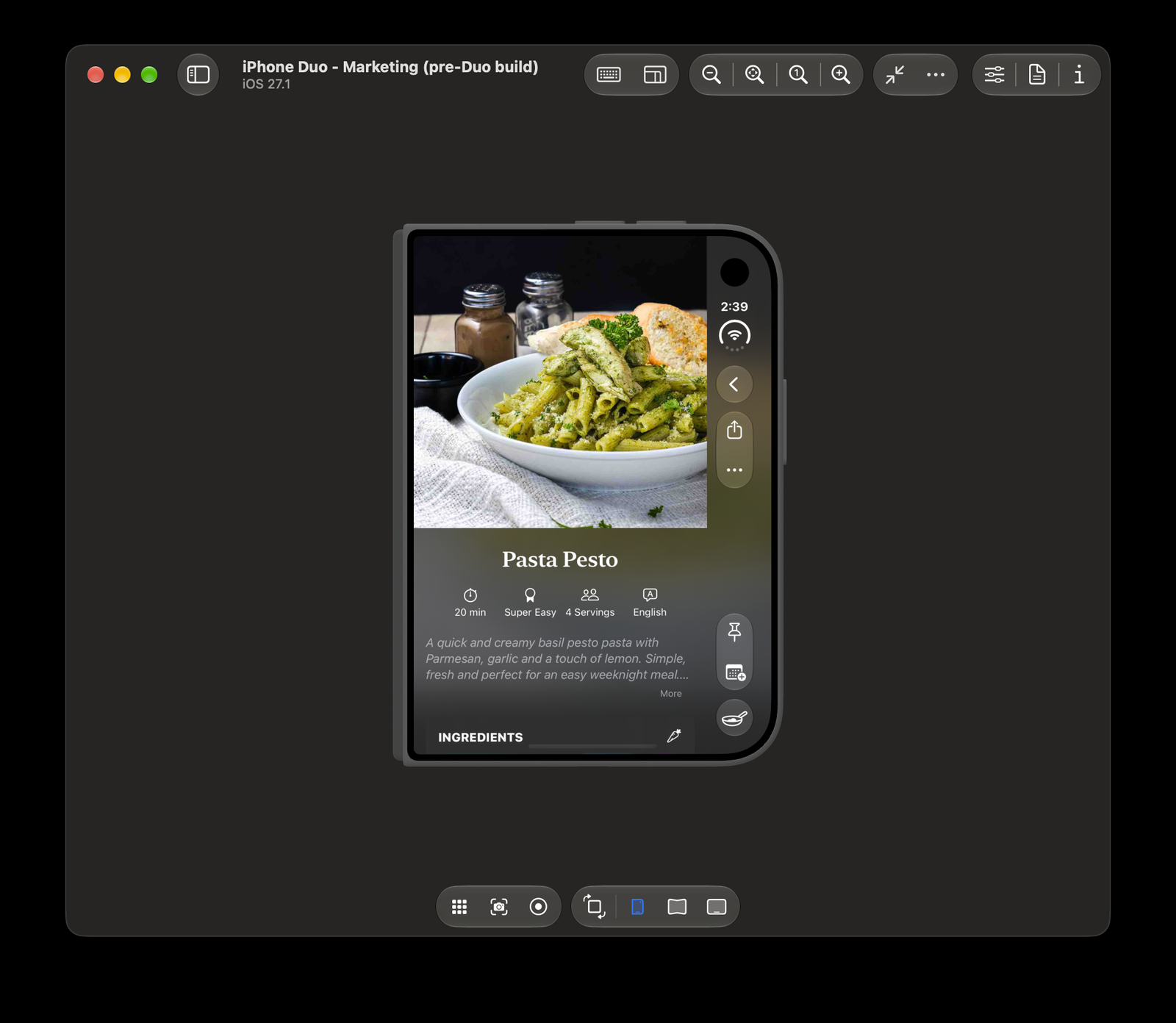
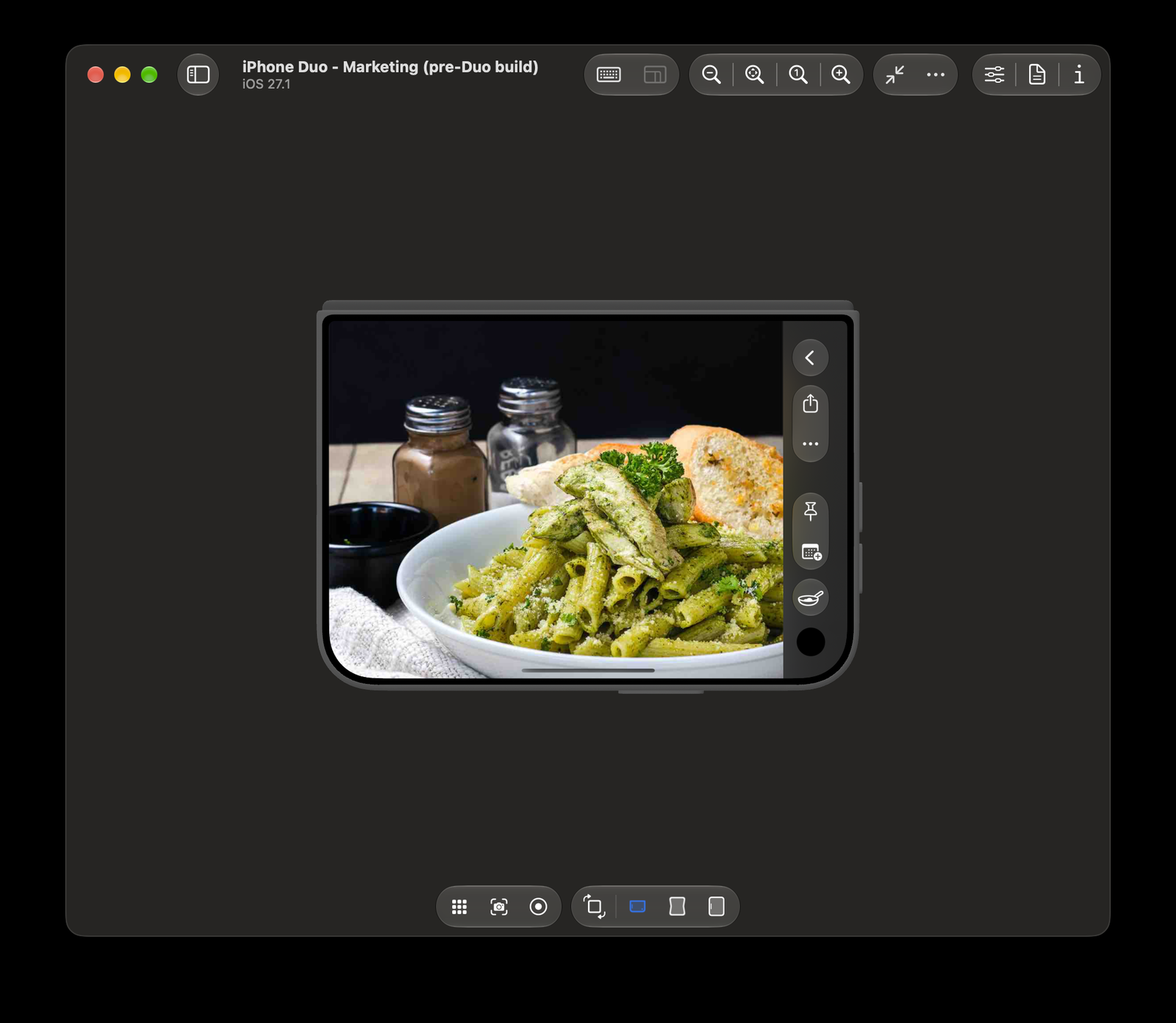
The layout that was already right for a short, wide screen was the one on Apple Watch: the photo fills the screen and the title sits on it. So that is what the cover screen got, with one addition: the photo runs on under the toolbar, mirrored and blurred the way it is under the iPad sidebar in portrait, so the recipe image brings its colour into the toolbar instead of a flat strip. The dark fade is baked in first, so the mirrored copy darkens with it.

Unfold, and the recipe extends
Open the phone in portrait and the inner screen is regular width but still too narrow for the two-column recipe, so it shows the single column. Our first pass gave it the same square hero every other iPhone gets. The result was a screen twice the size showing basically the same information as the folded one.
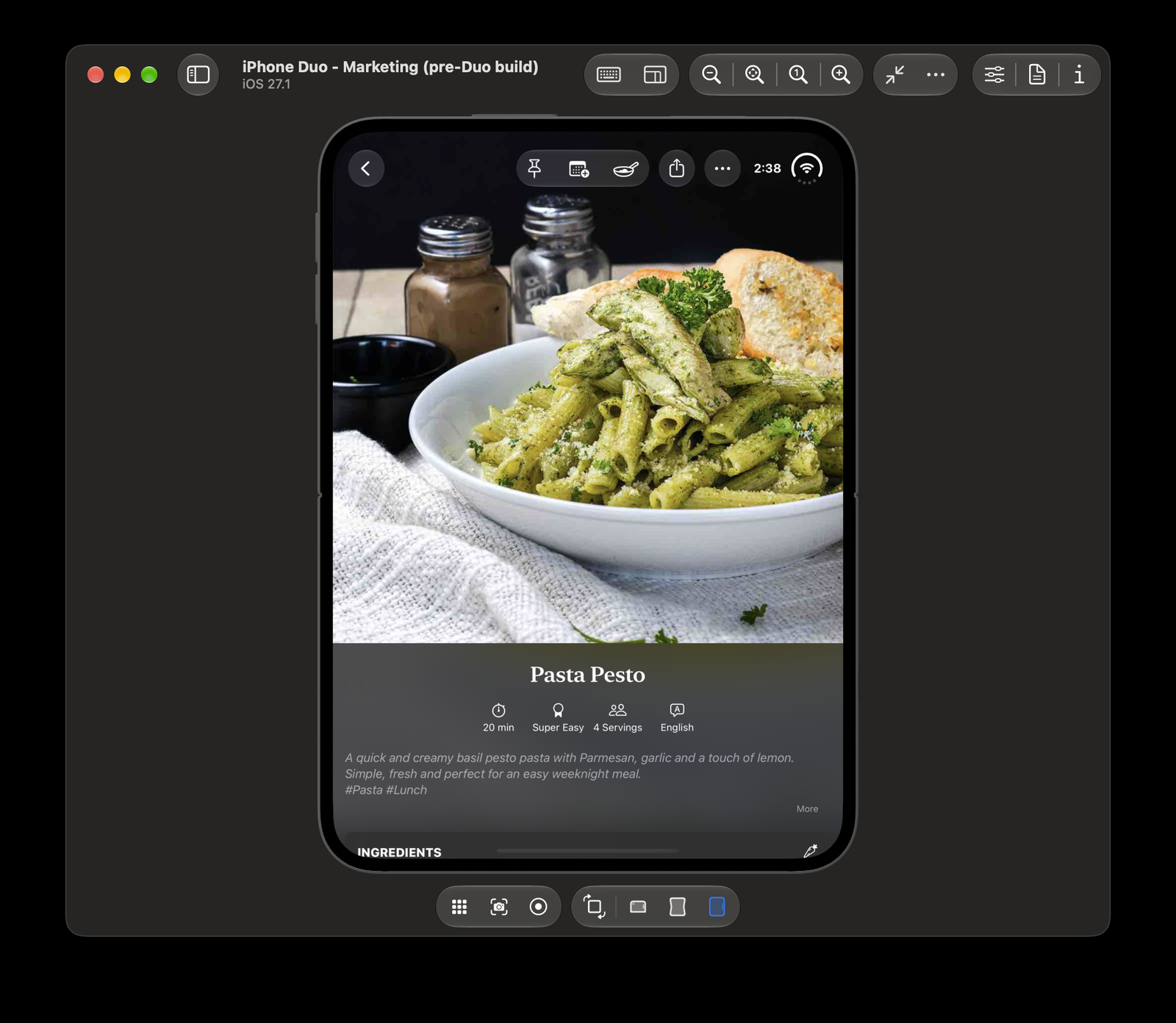
The fix was to stop treating the two screens as two layouts. The cover screen’s captioned photo keeps the top half of the inner screen, unchanged, and the new bottom half takes the description and the ingredients card.
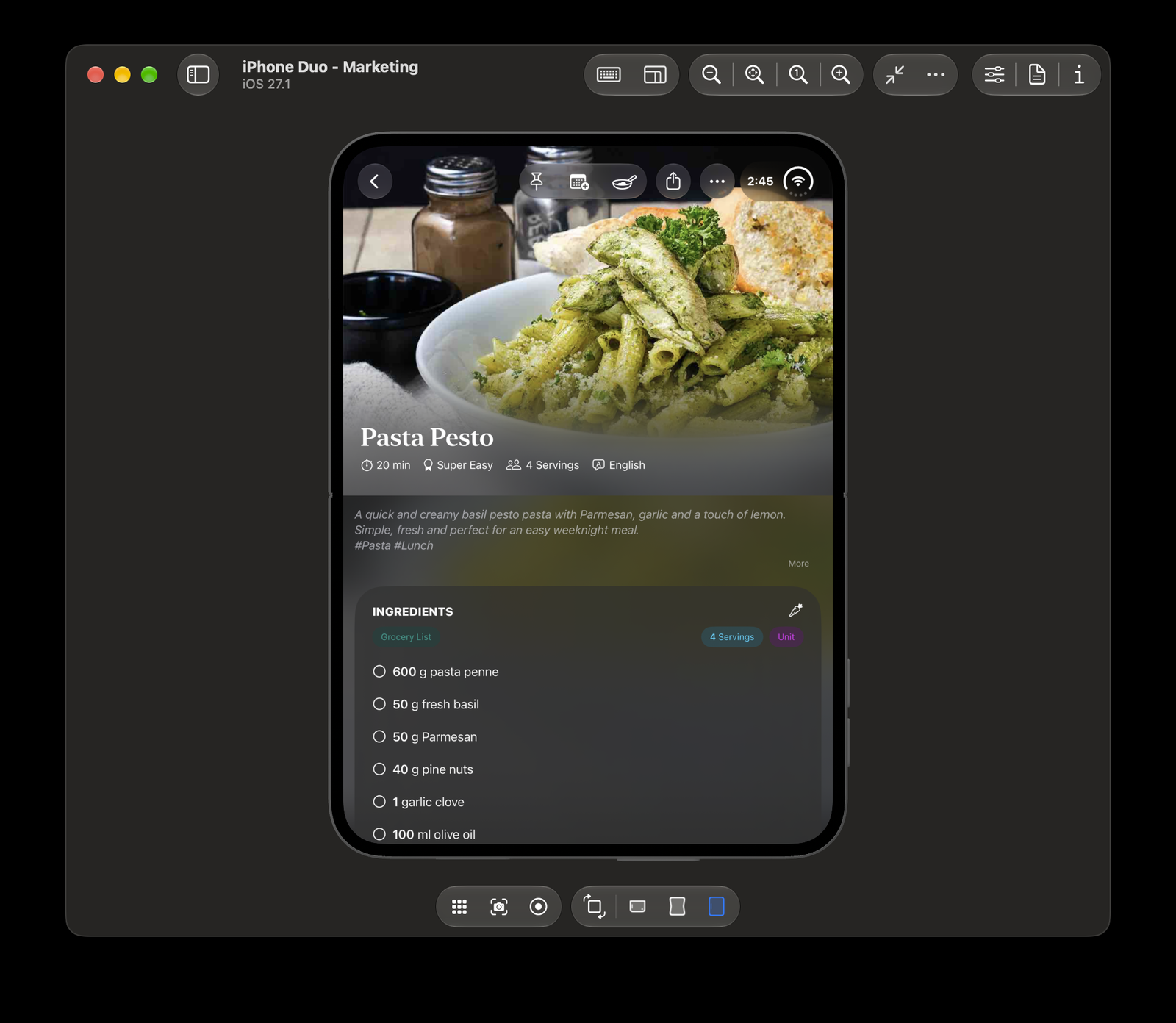
What makes it work is continuity. When you unfold, the photo stays where your eye left it, at the top, with the same title and the same quick facts on it. The toolbar hops from the side to the top, but everything else stays put. The new space reads as the recipe continuing rather than the screen rebuilding itself.
That was the point. We did not design a second recipe screen for the inner display. We let the first one keep half of it, and gave the other half to what comes next.
A crease not to be crossed
In landscape the inner screen is wide enough for the recipe’s natural shape — ingredients on one side, instructions on the other — so the captioned hero gives way to the two-column layout we already ship on iPad. Two things change for Duo.
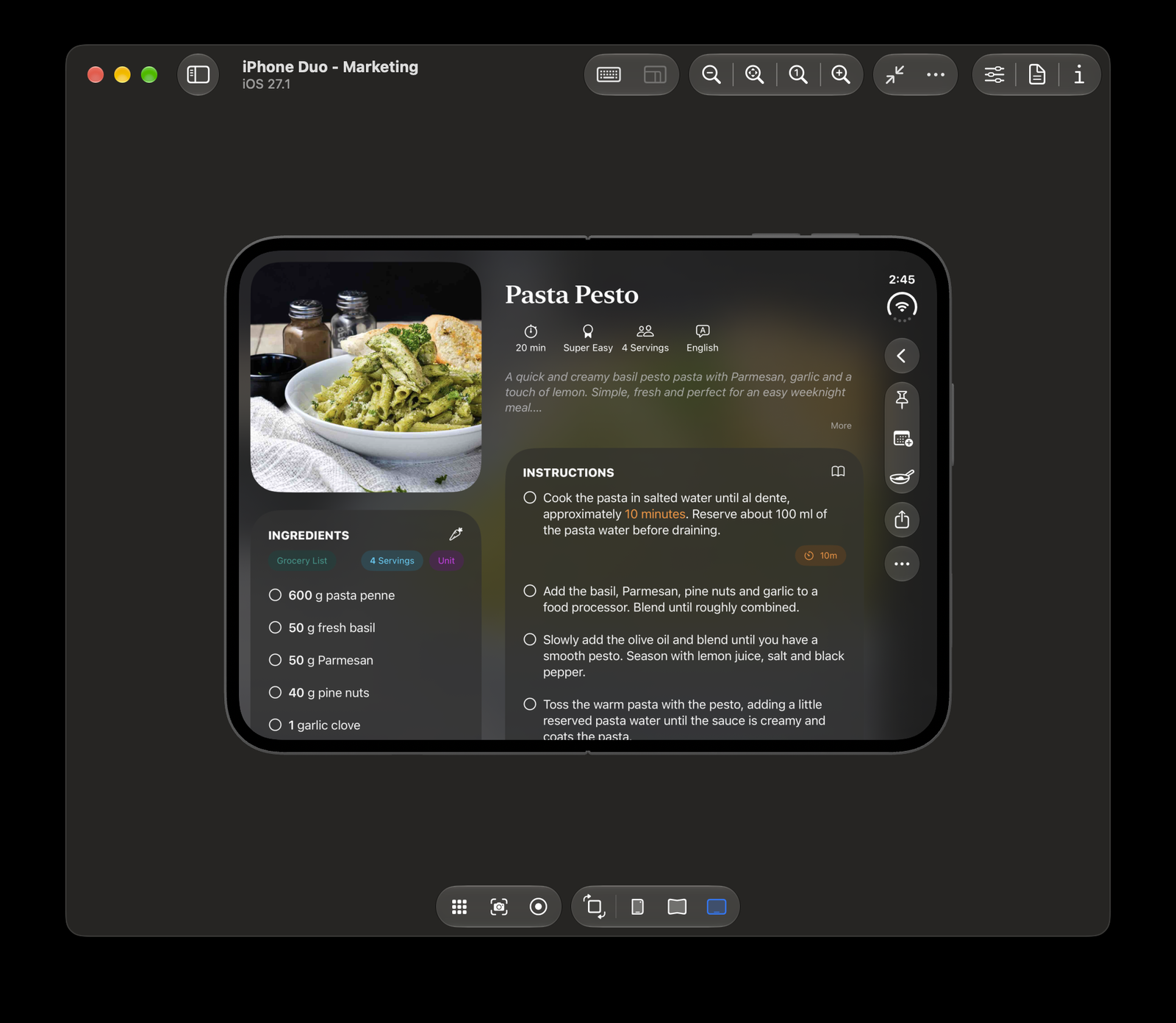
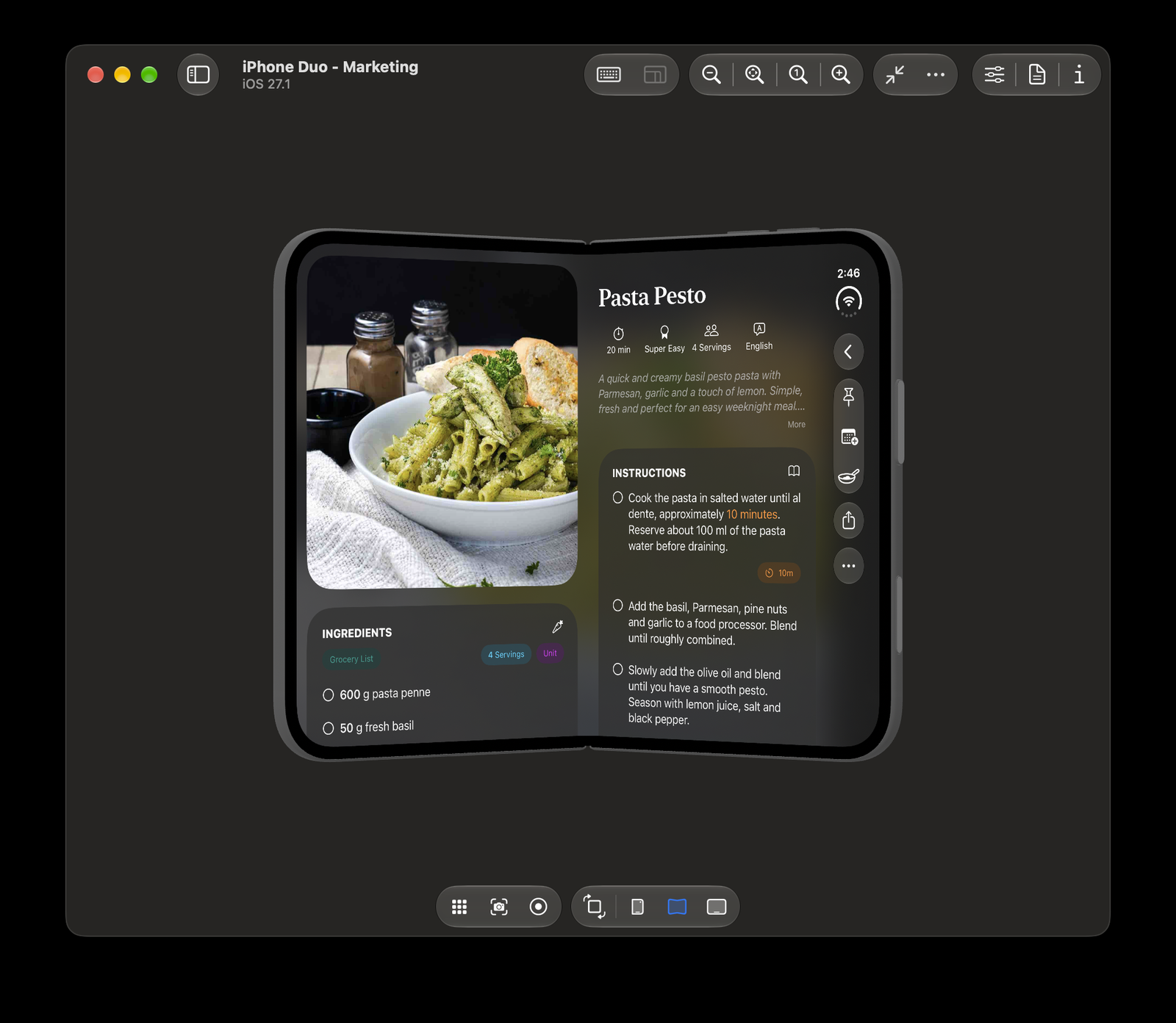
Held half-open, the split snaps to the hinge: the ingredients column ends at the crease and the instructions column starts after it, so no line of text bends. Lying flat, we keep the usual proportions and the wider instructions column. The hinge sits mid-screen, and the side toolbar takes its width from the trailing half, so splitting there while flat would cost the instructions more room than it is worth.
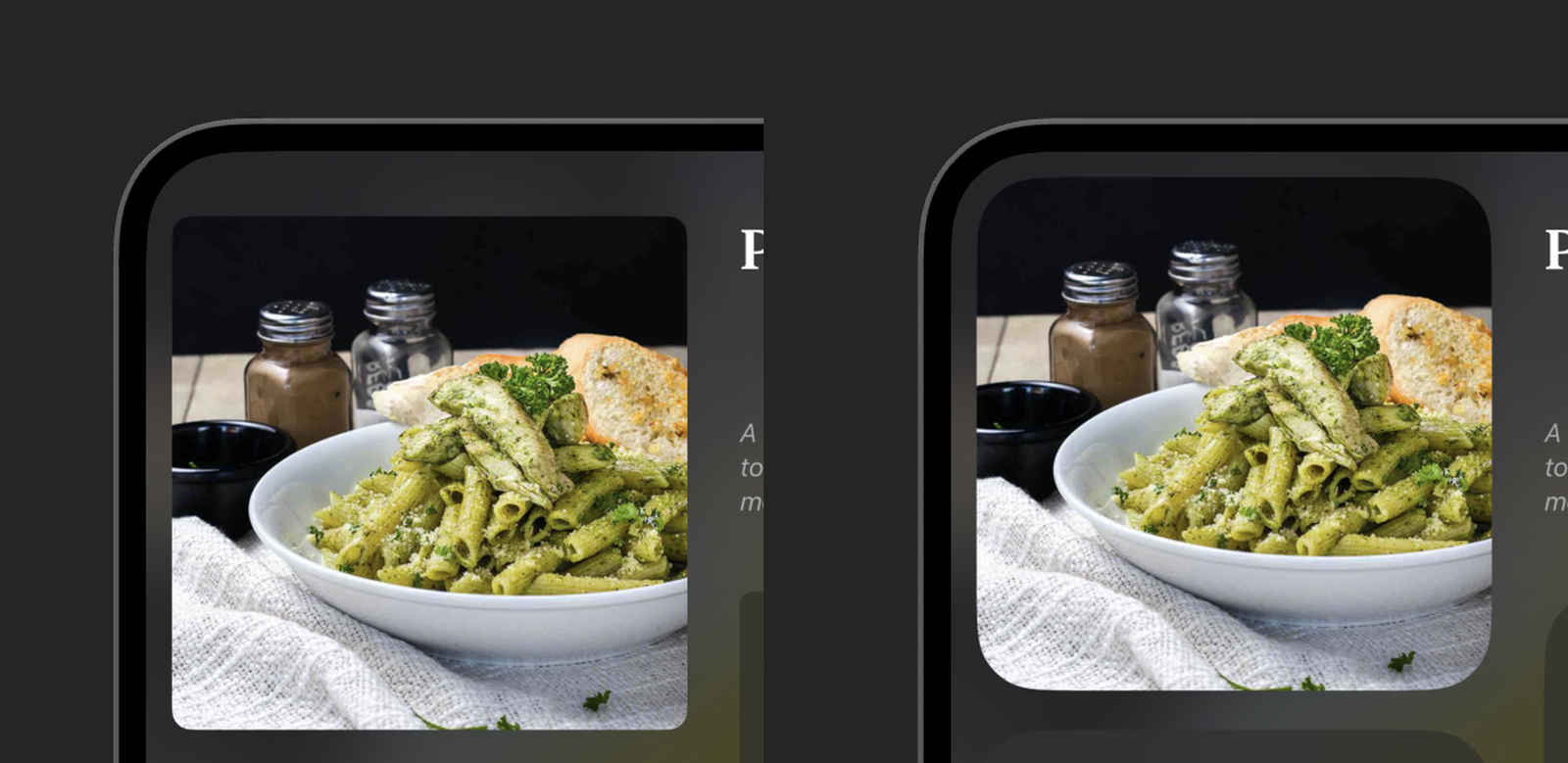
And the photo, which now sits in the display’s top corner, wears the screen’s own corner radius inset by its 16 pt of padding, so the two curves run parallel. Its old 12 pt radius looked wrong next to the display’s. The ingredients, instructions and nutrition cards took the same radius; the Library grid tried it for a week and went back to its usual 15 pt. Only content that sits in a screen corner needs to agree with it.
Cook mode: the smallest screen decides what matters
On a regular iPhone, landscape is easy to overlook, and overlooking it has been socially acceptable for years. Duo changes that: it is expected to be used in any position, and landscape poses like tent and laptop are actively promoted. In Ambre, the view most likely to meet those poses is cook mode: the phone propped up on the counter, closed or half opened, and in landscape either way.
Our inspiration came from our smallest screen: Apple Watch. A watch app can’t carry everything, so building one tells you which actions and information matter most right now. In cook mode, it’s simply the current step and its ingredients.
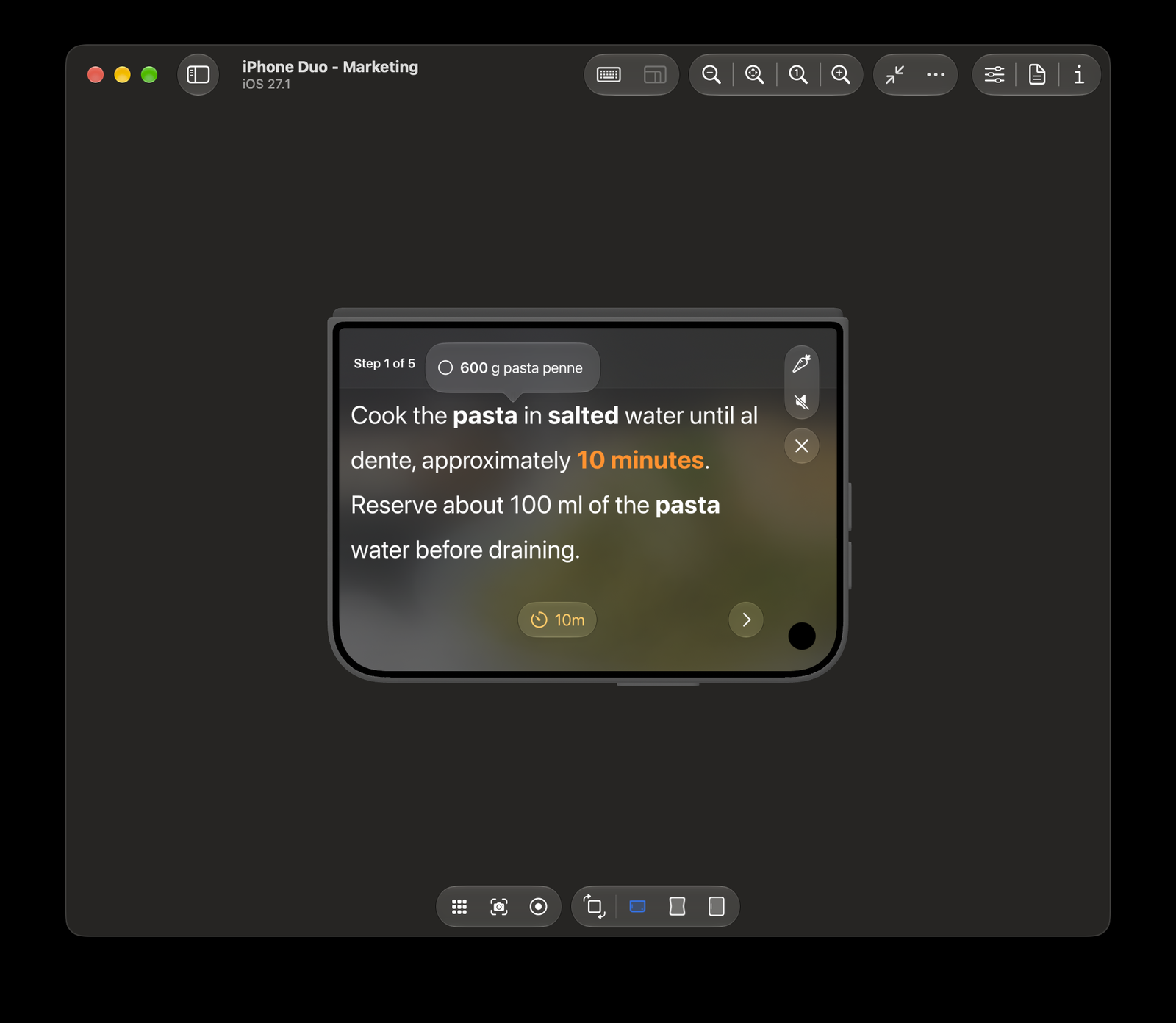
Cook mode is meant to be a focus experience, so we went through it hiding anything that read as noise or clutter and kept only what matters in that moment: the current step and its ingredients. On the closed phone even the “In this step” ingredient card was too much: it crowded out the instruction text, and there was room for one or the other.
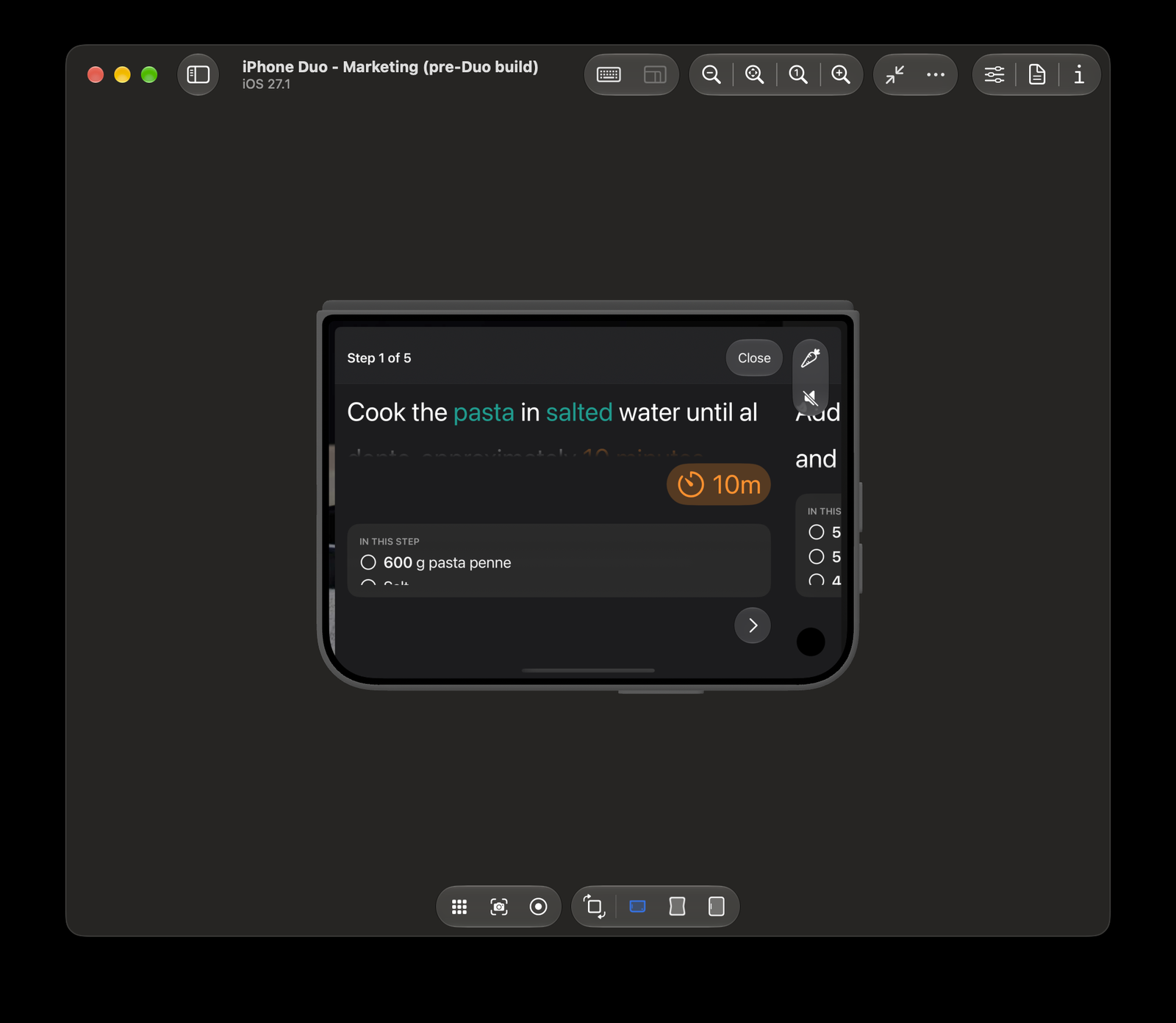
So the card is gone there. Tap a highlighted ingredient in the step and a popover opens at your finger with that mention’s scaled amounts, checkable in place. The step text keeps the whole screen, and the ingredient is one tap away. Every other layout keeps the card.
Then Duo’s biggest pose — fully open, landscape — pushed us the other way. Cook mode had always been a sheet, and on Duo’s open screen a sheet never reached the focus we were aiming for: the recipe stayed visible on both sides of it, and even the full sheet felt too small, with space to spare around it. That was the push to make cook mode a full-screen cover.
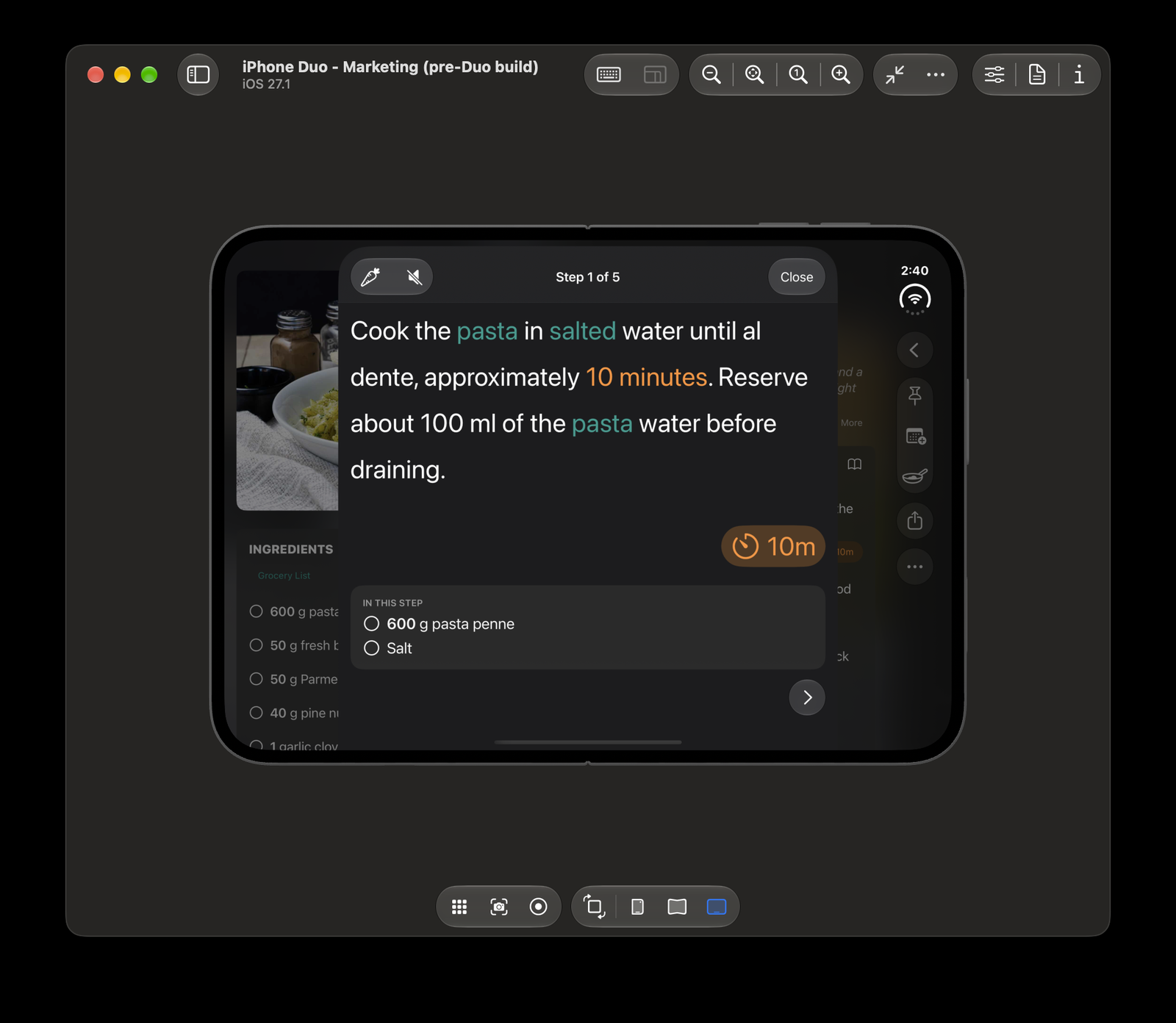
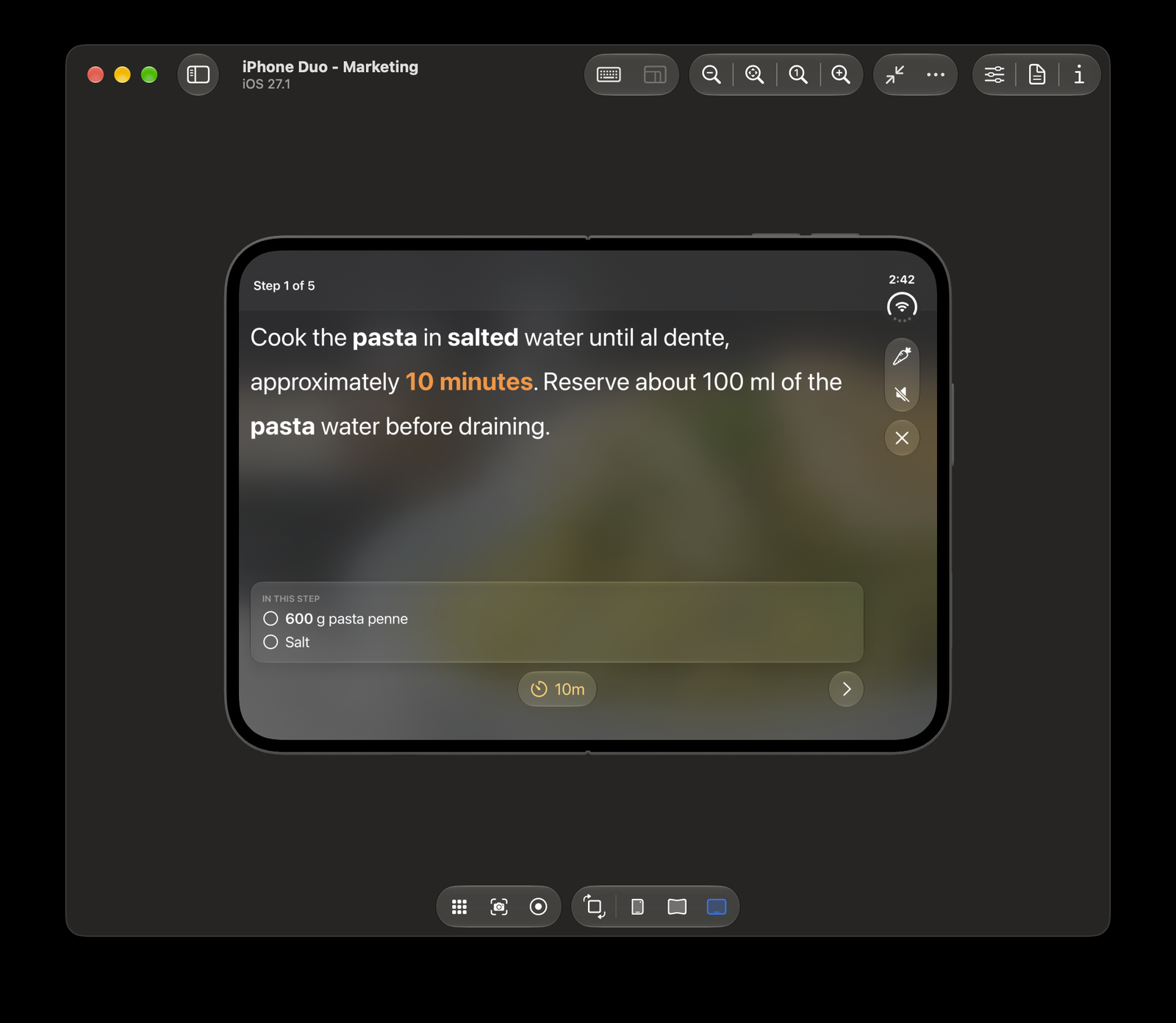
We didn’t want a “Duo special” that checks which device it is running on, so the cover is keyed to size classes instead: regular width and regular height get the full-screen cover, whatever the hardware. That rule also covers iPad, where cook mode had quietly carried the same compromise for years: a sheet, with the sidebar and the rest of the app still visible underneath.
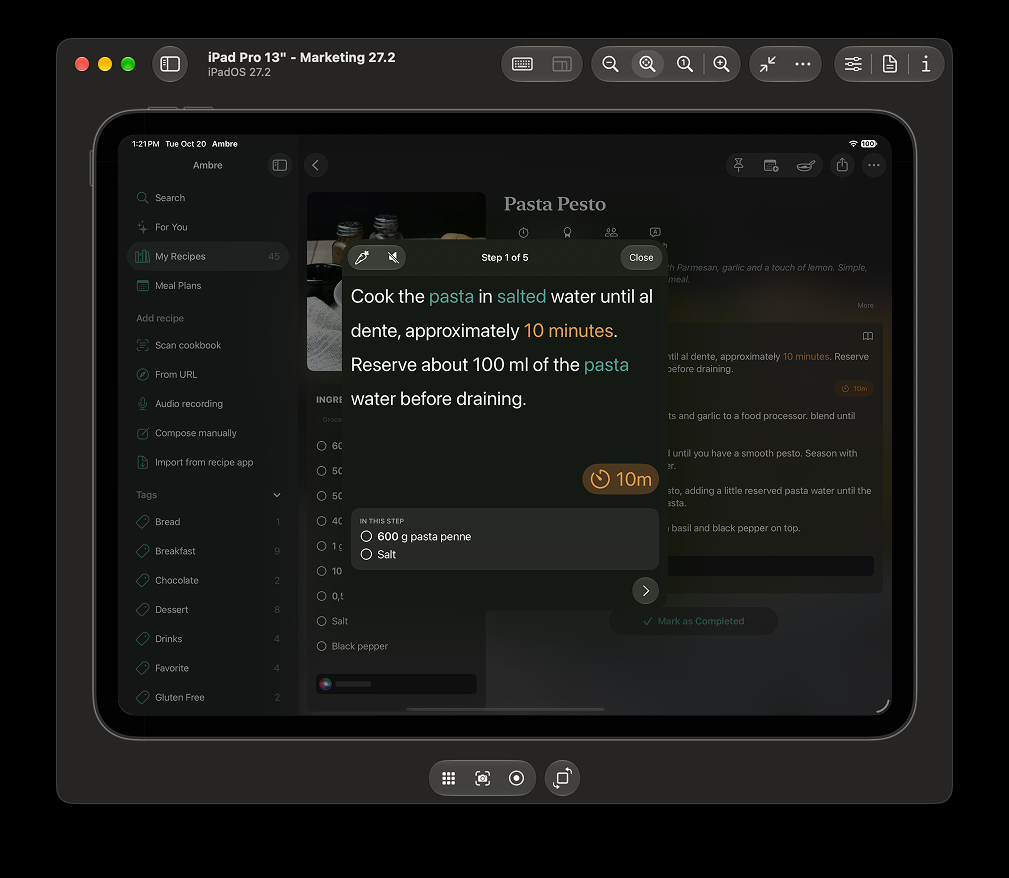
Perfecting cook mode on Duo finally pushed us to fix it on iPad too, and it got the focus mode it should have had all along, in the same change. Designing for Duo improved our other platforms.
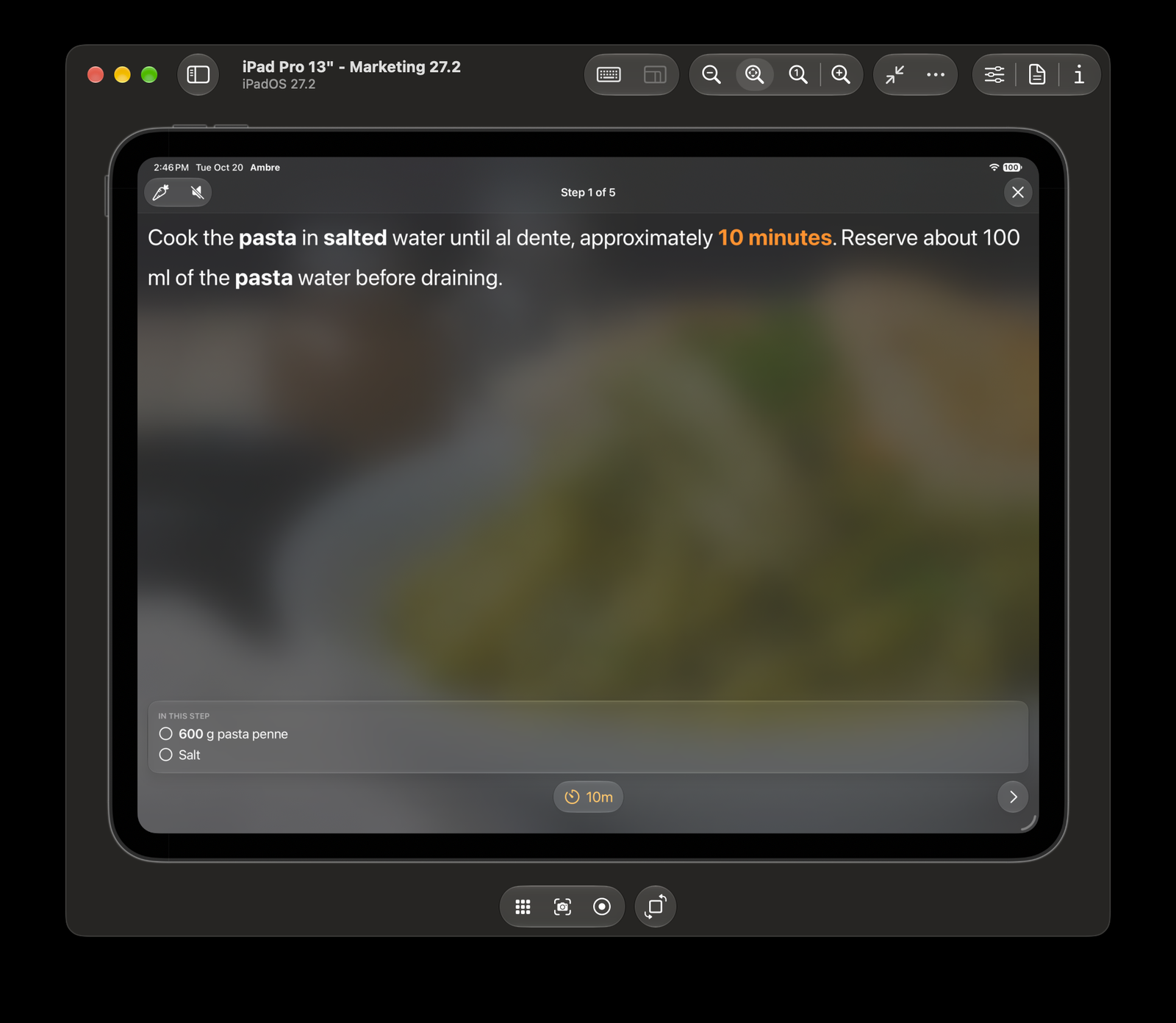
The same rule runs through the whole post, so it is worth saying plainly: don’t be blinded by which platform a view is on. Look at which size classes are active. Compact-compact is the closed phone in landscape, and it is also most iPhones held sideways (the Plus and Max models become regular width there). Regular-regular is the open phone in landscape, and it is also an iPad. Design for the size class, and the device follows.
The layers of designing for Duo
The recipe screen and cook mode are two stories, but every screen we looked at raised the same five questions. Here they are as layers, roughly in the order we found them, each resting on the one below. We haven’t answered all five on every screen yet — this update is a solid first release on a new platform, and making every view exceptional is what comes next.
1. Width
The foundation. Columns flex, grids pick a column count, the two-column recipe appears when there is room. If you have done the iPad and Mac work, you have this already. If you haven’t, start here and nothing else in this list matters yet.
2. Posture
A foldable is not one device but three — closed, fully flat and half opened — and the user moves between them mid-task. The design question for each screen became: what should stay put when the phone changes shape? Our answer, almost everywhere, was “as much as possible.” Grids keep the same number of columns in every posture so that half opening the phone only moves the middle gap, never the cards. The recipe photo keeps its place at the top whether the phone is closed, fully flat or half opened.
3. Crease
Fully flat, you forget the hinge is there. Half opened, it is the most important line on the screen, and anything laid across it bends. So in that posture the recipe parts at the fold: the ingredients column ends at the crease and the instructions start after it. And when the phone is fully flat, the crease goes back to being invisible — we deliberately do not split at it then, because the toolbar makes the two halves unequal and the instructions would lose room for no reason the user can see.
4. Screen shape
Two things no size class tells you. On a regular iPhone the recipe photo never touches a display corner; on Duo’s inner screen in landscape it does, and its small radius suddenly looked wrong against the display’s. So anything that sits in a corner — the recipe photo, the cards beneath it — wears a matching radius; anything that doesn’t keeps its usual one. And the toolbar lives down the trailing edge, which makes it a region rather than a bar: large, decorative content like the recipe photo or a card in a horizontal scroll can run underneath it blurred, as it does under the iPad sidebar, while small controls keep clear of it.
5. Transition
The layer we found last, and the trickiest. Every other screen change on iOS has a trigger and an animation Apple has already designed: you tap something, and the zoom transition, say, carries your eye from the thing you tapped to the new screen. Unfolding has neither. Nothing was tapped, the view is already up, and it simply gains room. With no animation to lean on, the only thing that can make the change feel designed is that what the person was looking at stays where it was, and the new space fills with more relevant information rather than the same content scaled up. So far we have only managed that in the recipe detail view, and only when Duo is opened in landscape: the photo and title stay at the top, and the rest of the recipe appears in the new half beneath. Opened in portrait, it is still a tricky case we are working on. Apple has promoted this transition almost as a feature, but very few apps in the wild support it while staying true to their initial layout. It will be interesting to see whether that changes how apps are designed over time — whether we end up with a before Duo and an after Duo.
A flexible layout gets you the first of these. The other four are design decisions, and each one is a decision about what the user should feel when the phone changes shape: nothing, ideally. Just more.
Where to start
If you are preparing your own app, the order that would have saved us the most time:
- Confirm the foundation — it resizes — and then stop treating that as the finish line.
- Open every screen on the closed phone in landscape. With less height than any other iPhone held sideways, it is the surface most likely to feel cramped, and whatever feels wrong there will show up on the inner screen in portrait too, just more politely.
- Fold and unfold the phone on every screen and watch what moves. Anything that moves should be intentional.
A tip. Look for a layout you already have for a short, wide screen; ours was on Apple Watch. If you don’t have a watch app, imagine building one. The watch tells you which actions and which information matter most in this very moment, and that is usually exactly what the closed phone wants too — for us, the recipe photo with its title, and in cook mode the step with its ingredients one tap away.
Ambre 5.0.5 with the Duo work is submitted and will be on the App Store on launch day. Our design work for Duo has only just begun; there are views that still need perfecting, and this release is the foundation. Once people start cooking with it folded, unfolded and propped up on the counter, we’ll learn what holds up and what doesn’t. And if this release is anything to go by, some of it will find its way back to platforms we thought were finished. Which ones, only the future holds.
Written by
Sofia Larsson