- Figma
- Screenshot
- AppStore
- Alpha
Handle Alpha Channels error for your AppStore Screenshots
 Sofia Larsson
1 min read
Sofia Larsson
1 min read
You’re at the stage where you have completed your beautiful screenshot designs and are ready to upload them to AppStore, only to be met by this error:
“Images can’t contain alpha channels or transparencies”
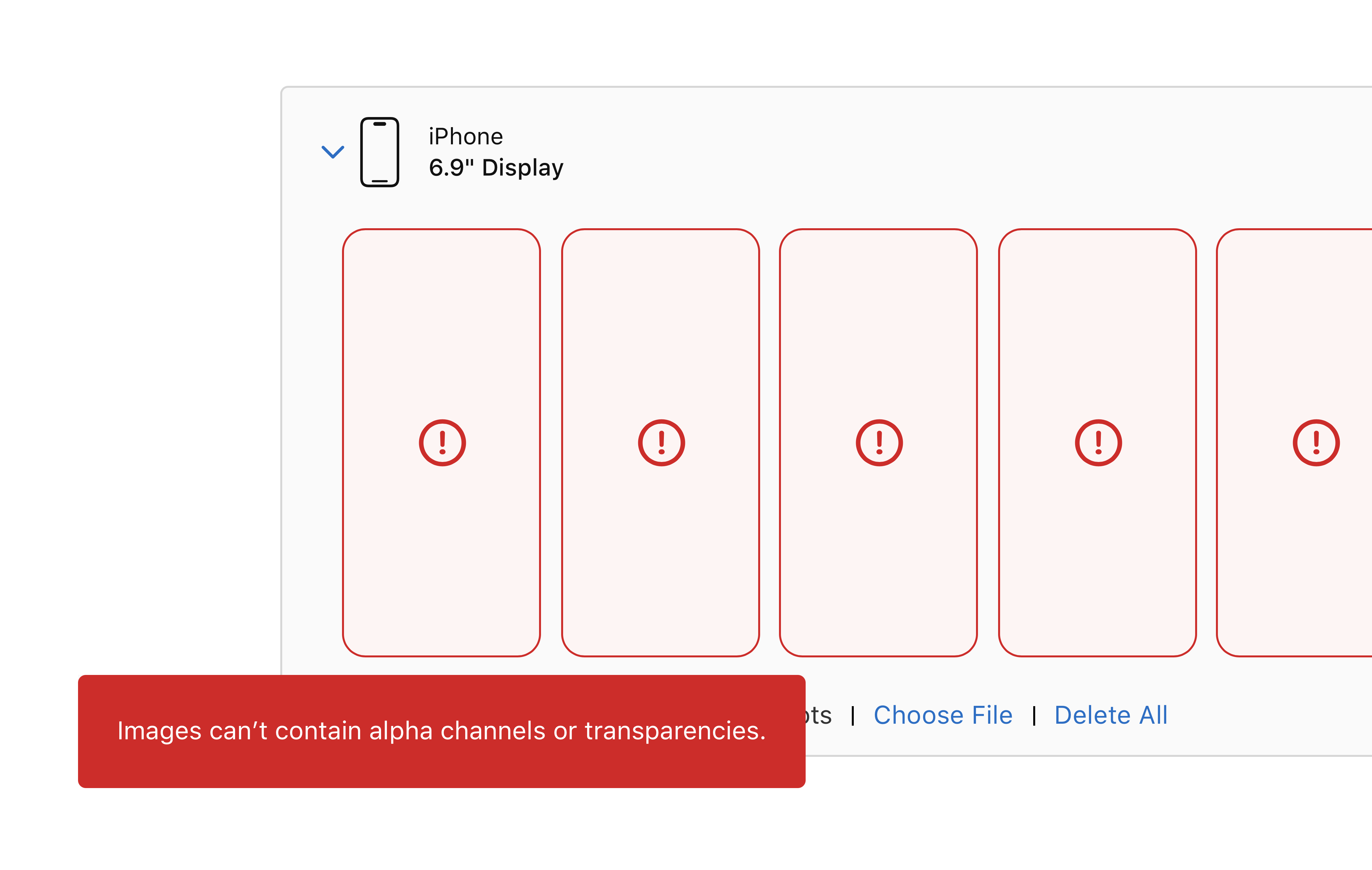
So how do you export PNG in Figma without alpha channels?
Turns out, you can’t. Not in vanilla mode at least.
But there is a simple workaround. Export your frames like you normally would. Then for each of your files:
- Open the file with Preview.
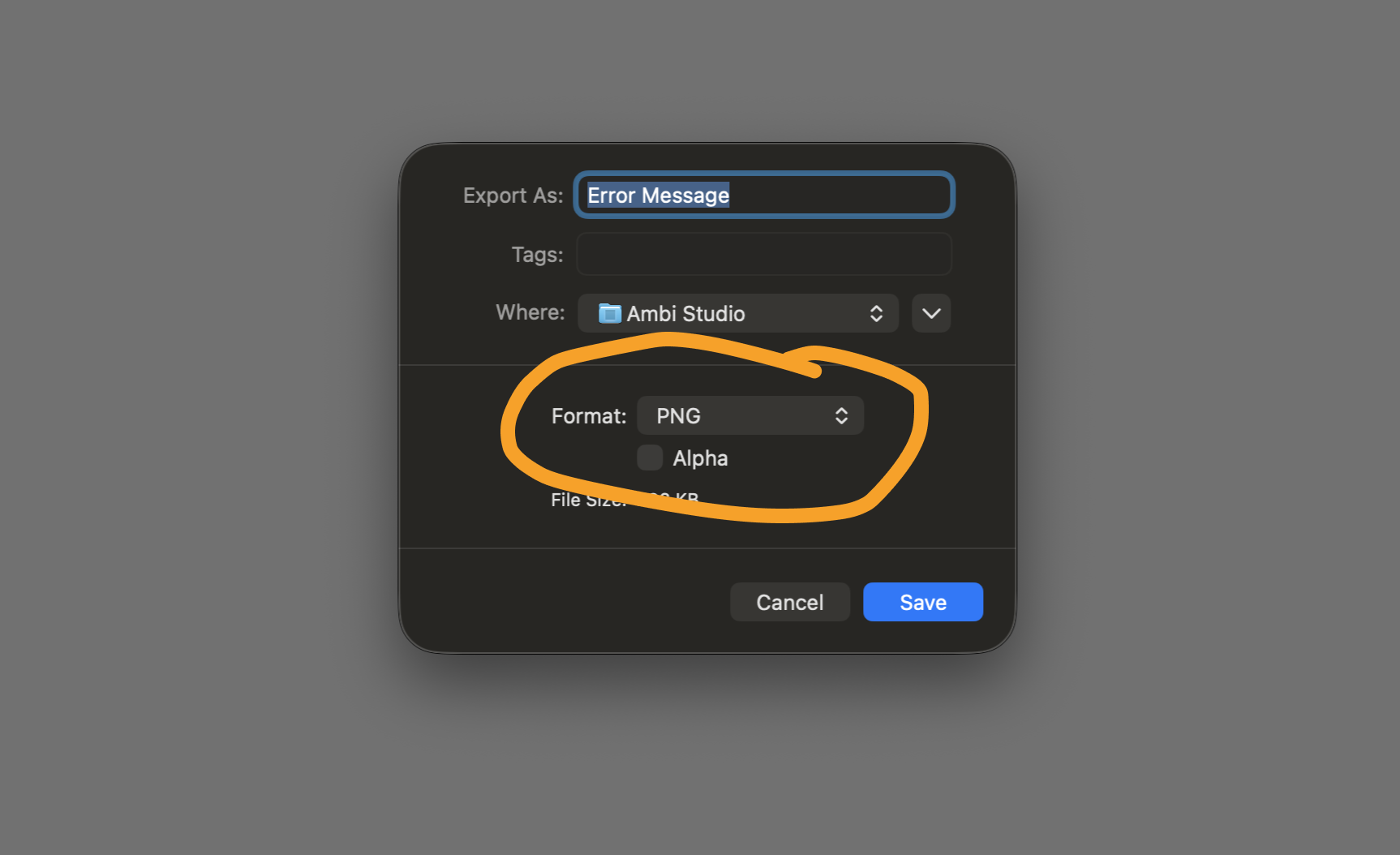
- Go to “File”, then click “Export…”
- Uncheck “Alpha”
- Save like you normally would.
Now, go to AppStore and upload your screenshots. Just make sure you have the correct screenshot size first, which varies depending on device and platform!

Written by
Sofia Larsson